Virtual PC virtualizes a standard PC and its associated hardware. Supported Windows operating systems can run inside Virtual PC. Other operating systems like Linux may run, but are not officially supported.
This is what that is stated in the Wikipedia sites. You may refer to Wikipedia for more info on Windows Virtual PC.
So, here's the thing. What can you do with Virtual PC?
- You can basically install another Operating System without disturbing your current Operating System. That means that your file are still secured back at your original OS.
- You can test any software which you have just bought or downloaded on your virtual OS before installing it onto your original PC. This means that it can be used for testing softwares.
- If you plan on teaching people how to format a PC, just use Virtual PC and you can teach them by installing an OS on a new virtual machine
so, if there is other function, great.
To start off, here's the way to do it
1) Download Microsoft Virtual PC -
LINK2) Install it
3) Start the application
4) Click on the new button or go to File>New Virtual Machine Wizard

5) Click Next
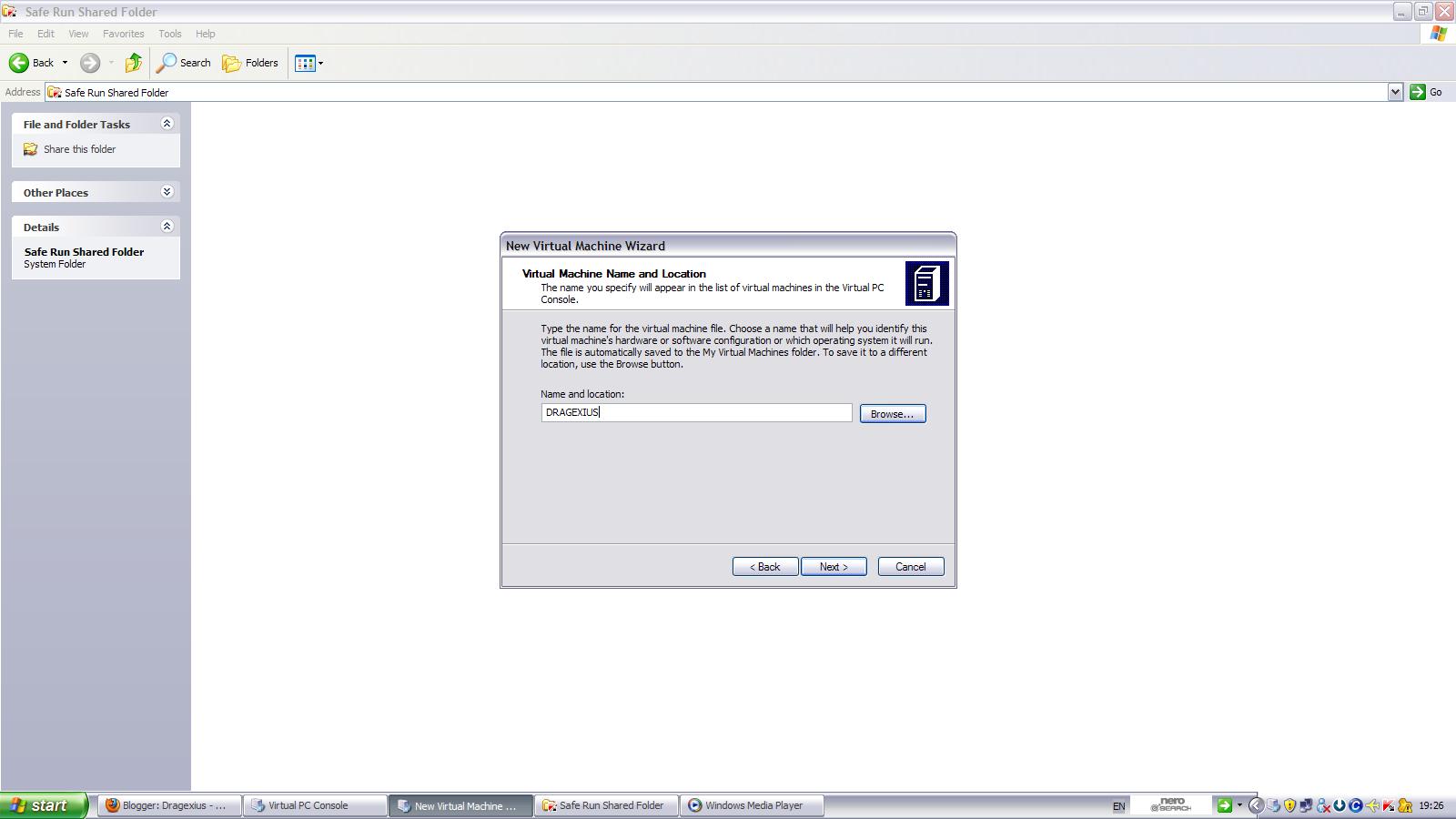
6) Select "Use Default Settings To Create A Virtual Machine"
7) Enter the Name and Location of The Virtual Machine You Want

8) Click Next
9) Click Finish
10) Here's what you get

11) Select Hard Disk 1, then select Virtual Disk Wizard
12) Click Next
13) Select "Create a new virtual disk
14) Select " A new virtual hard disk" unless of course if you plan to install it on other memory storage device
15) Select "Browse"
16) Upon that, type the name of your hard disk so that you can always find it back for some purpose and the location, choose yourself
17) Proceed
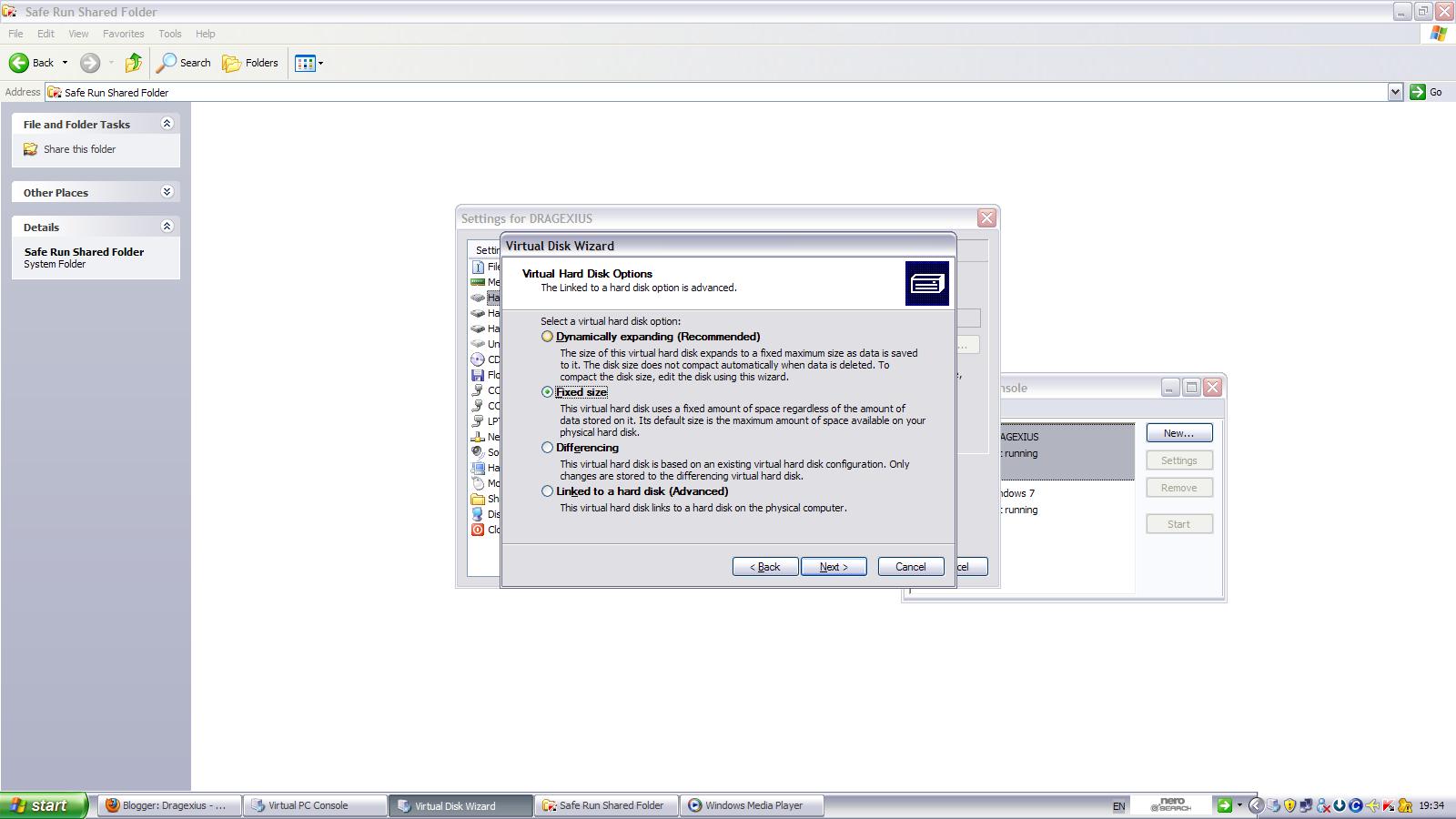
18) I prefer you select Fixed Size rather than the other options of course

19) Enter the size you want. Take note that there is a limit
20) Finish it
21) Select Hard Disk 1, then select Virtual Hard Disk option
22) Browse back for the Virtual Hard Disk you created earlier
23) Proceed
24) Click start on the new Virtual PC you have just created. That would open up a new window
25) Ensure that your OS cd/dvd is inserted into your reader
26) Go to CD > Use Physical Drive "Any one which you have the OS cd inserted"
27) Then you are ready to install your OS
Hope I have helped you
Until Den
~
~





 6:36 PM
 Dragexius ☺
, Posted in
Amazon
,
Apple
,
Berkshire Hathaway
,
Coca-cola
,
Company list
,
FedEx
,
Google
,
McDonald's
,
Microsoft Virtual PC
,
Procter and Gamble
,
Southwest Airlines
,
0 Comments
Dragexius ☺
, Posted in
Amazon
,
Apple
,
Berkshire Hathaway
,
Coca-cola
,
Company list
,
FedEx
,
Google
,
McDonald's
,
Microsoft Virtual PC
,
Procter and Gamble
,
Southwest Airlines
,
0 Comments